A travel eSIM is set up at home, before you fly. Here is what to check, in the order you will need it.
Most of this list is done at home, before the trip. Where something has a procedure, the item links to it.
What should I check before I buy?
Your phone supports eSIM. Most phones from the last few years support eSIM. Your phone also needs to be unlocked by your carrier. Check yours on Compatible devices.
Your phone is unlocked. A phone bought on a contract is usually locked to its carrier until the contract ends, and your carrier can usually unlock it. Only you can check this one. Compatible devices shows how to check.
The plan is data only. You get mobile data, not a phone number. Your home number keeps working for calls and messages. Calls and texts on your home line abroad can bring roaming charges from your home carrier. Calling and messaging apps over your travel data do not. More in the Help centre.
Your trip is on land. Works on local mobile networks. Not at sea or in the air. More in the Help centre.
You know when it arrives. Your eSIM arrives by email before you travel. No physical card, nothing to collect. We send it about 30 days before you travel, or right after you pay if your trip is within 30 days. More in the Help centre.
One plan covers one trip. One plan, one trip: no subscription, nothing to cancel.
What do I need to do before I fly?
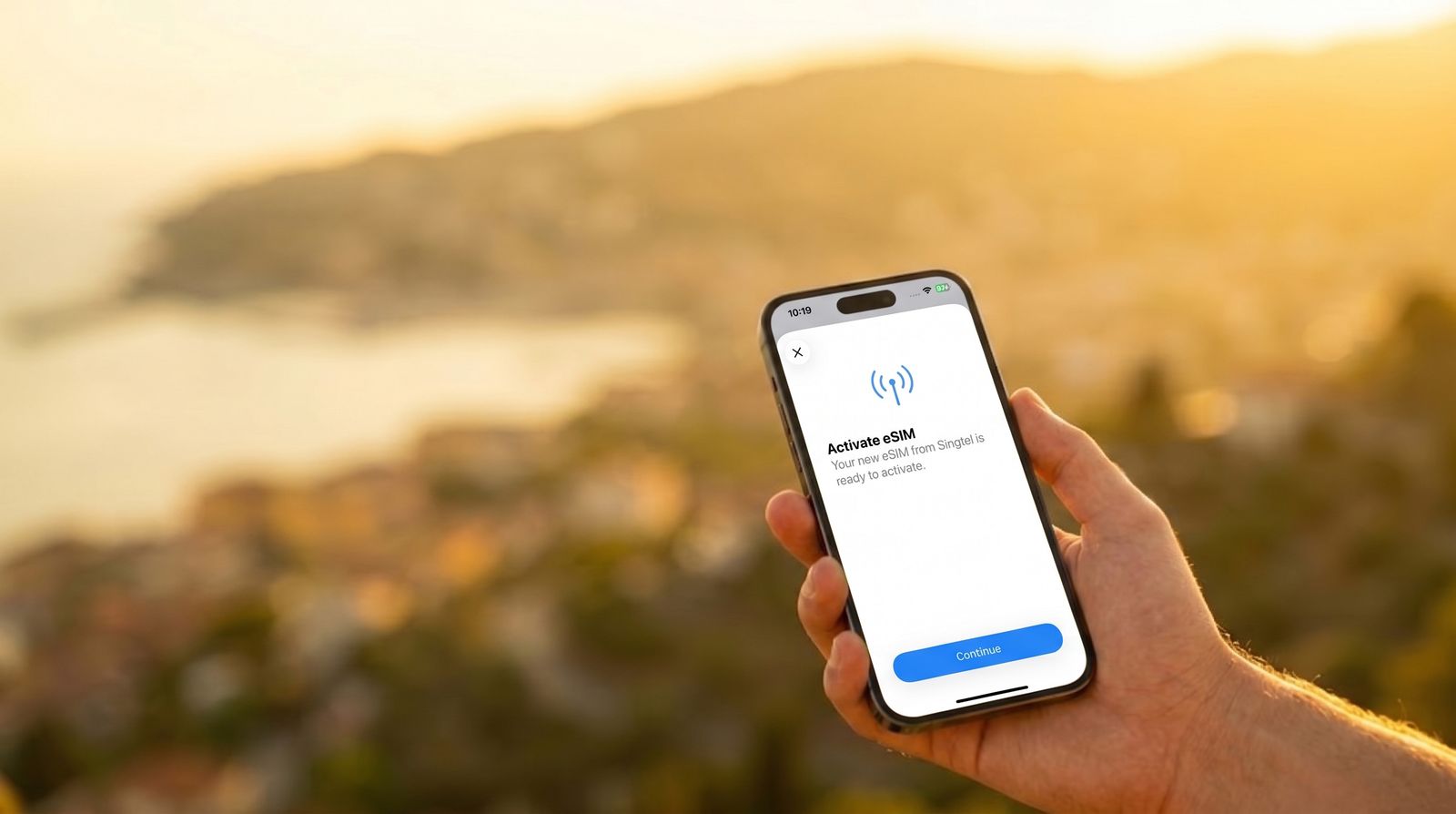
Set it up at home, on Wi-Fi. Setting up needs an internet connection, so do it before you leave. The steps for your phone are in Set up eSIM.
Have the QR code on another screen. You scan it with the phone you are setting up, so open the email on a laptop or a tablet, or print it. If it will not scan, you can enter the details by hand instead. More in the Help centre.
Label the new line. Travel, or the country name, makes it easier to recognise later. Where to do it is in Set up eSIM.
Keep your usual line as the default for calls and messages. Where to do it is in Set up eSIM.
Choose the eSIM line for mobile data. Leave Allow Mobile Data Switching off — it can quietly move you back to your home line and start roaming charges. On Android, leave automatic data switching off.
Leave your usual SIM where it is. You do not need to take it out. The eSIM is added alongside it.
Expect "No Service" until you arrive. Setting up does not start your plan. Before you travel, the eSIM line can show No Service. That is normal.
One eSIM, one phone. Each plan is a new eSIM, and it runs on one device at a time. It cannot move to another phone, so set it up on the phone you are travelling with. More in the Help centre.
What happens when I land?
Your eSIM activates when your phone connects to a network in your destination.
When your plan starts. When does my data plan start? explains when your plan starts.
What if my eSIM does not connect?
Start with the set-up guide. Set up eSIM has the checks for your phone.
Is Data Roaming on for the eSIM line? Abroad, your phone treats the local network as roaming, so the eSIM line needs Data Roaming on. On that line, it does not mean a roaming bill. The Help centre has the other checks.
Still stuck? Message Globeebot — it can check your eSIM status directly.
Reaching us. Globeebot answers at any hour. Our support team is online Monday to Friday, 09:30–18:00 Singapore time. There is no phone line. Message Globeebot or email support@globee.link.
What should I know during my trip?
Data stops when the allowance is used up. To keep going, you need more data. More in the Help centre.
Top up before you run out, where your plan allows it. Topping up needs data or Wi-Fi, so it is easier before the allowance runs out. Some plans cannot be topped up; for those, a new plan is the way to keep going. How to top up is in the Help centre.
Plans cannot be paused. Once a plan starts, it runs until its data or its days run out. More in the Help centre.
Usage can lag. Usage comes from the network, so it usually takes a few hours to catch up. More in the Help centre.
Sharing is by hotspot. Hotspot and tethering are supported, and whatever you share comes out of your allowance. More in the Help centre.